Whether creating a blank virtual CD or a virtual ISO blank, Virtual CD can use a physical template for the process. This is particularly useful if you want to ensure that the resulting blank virtual media has the same data capacity as the physical version.
|
Run the Blank Media Wizard |

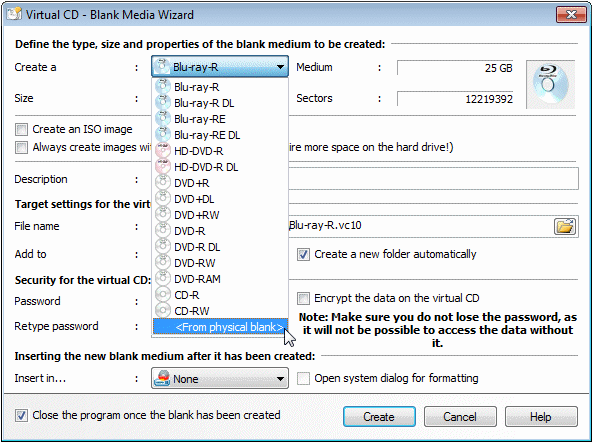
Insert the physical blank medium and run the Blank Media Wizard. In the menu for the Create a field, select the last item, From physical blank.
|
Select the physical burner |

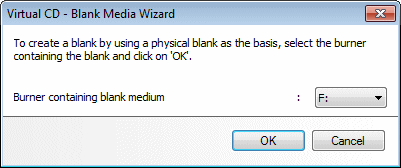
In this dialog, select the burner containing the blank medium. Click on OK to load the selection in the Blank Media Wizard.
|
Create a blank virtual medium |

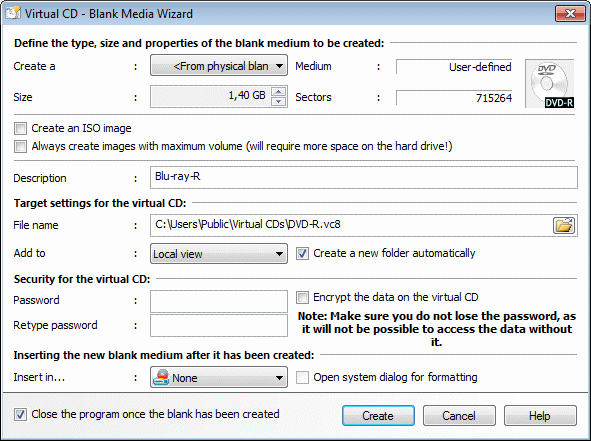
The Blank Media Wizard now shows the data that it has read in from the physical medium. In our example, this is an 8 cm DVD-R with 1.4 GB. The Blank Media Wizard creates a virtual blank with the specifications given, when you click on Create.
That's it! You now have a virtual blank with the specifications of the physical medium.